When the Signal Gives Up at the Chimney Breast: A Practical Wi-Fi Guide for UK Homes
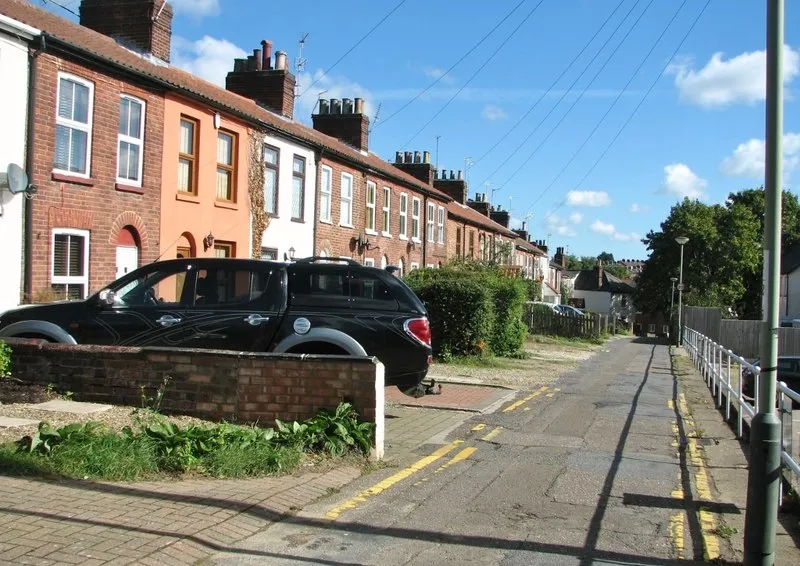
Photo: Evelyn Simak , CC BY-SA 2.0, via Wikimedia Commons
Your broadband is probably fine. The trouble is that Wi-Fi is radio, and radio has to negotiate with brick, foil-backed plasterboard, chimney breasts, mirrors, fish tanks and the microwave. In a UK terraced house, that negotiation can feel like a diplomatic incident. The spare bedroom gets one bar, the kitchen gets none, and the only place the laptop behaves is the hallway table next to the router. This is not a moral failing. It is physics plus floor plan.
The router is not a moody houseplant
Before buying anything with 'boost' in the name, look at where the router sits. A router tucked into a cupboard, hidden behind the telly, or placed on the floor is working with one hand tied behind its back. Wi-Fi spreads outwards and slightly downwards from the aerials, so a central, high-up spot in the house is usually better than the darkest corner of the hall. Keep it away from metal, mirrors, water and large electrical appliances. Do not stack it on top of the microwave and then wonder why EastEnders breaks up at teatime.
If the router has external aerials, try one upright and one at an angle rather than all pointing the same way. It is not an exact science, but it costs nothing. Also check the obvious: is the router actually connected to the master socket or the fibre box, and is it the router your ISP supplied in 2026 rather than a museum piece you found in a drawer?
Thick walls, foil and the 2.4GHz/5GHz split
UK housing stock is charming and awkward in equal measure. Victorian terraces have solid brick walls. 1930s semis have thick internal walls. New-builds can have foil-backed plasterboard that acts like a mild Faraday cage. Add a chimney breast in the middle of the house and you have a natural Wi-Fi dead zone.
Most modern routers run two or three bands. The 2.4GHz band travels further and bends around walls better, but it is slower and crowded. The 5GHz band is faster but gives up sooner. The 6GHz band on Wi-Fi 6E and Wi-Fi 7 kit is faster still, with even less reach. If your router splits these into separate network names, try the 2.4GHz one in the far bedroom and the 5GHz one in the same room as the router. If it uses one name and steers devices automatically, leave it alone unless you have a device that keeps making the wrong choice.
Channel clutter in a terraced street
In a terraced street, your Wi-Fi is sharing the air with every neighbour's router, doorbell, baby monitor and smart meter. On 2.4GHz, the cleanest channels are usually 1, 6 and 11, because they do not overlap. On 5GHz, there are more channels and less neighbourly chaos. Your router's app or admin page may have an auto-channel setting; it is often fine, but if the whole street is crammed onto channel 6, switching to 1 or 11 can help. A free Wi-Fi analyser app on your phone can show you the pile-up, though do not spend a weekend chasing perfect graphs.
What actually helps: mesh, powerline, Ethernet
A mesh kit is the most reliable upgrade for most homes. It uses two or three units that work as one network, so your phone hands over from one to another as you move around. In 2026, mesh kits are cheaper and less fussy than they used to be. Where possible, connect the mesh units together with Ethernet cable. That is called wired backhaul, and it is the closest thing to a cheat code. If you cannot run cable, most mesh systems still work wirelessly, but each hop costs speed.
Powerline adapters are the other practical option. They send data over your home's electrical wiring. They work best on the same ring main and when plugged directly into a wall socket, not an extension lead. Results vary wildly: a Victorian terrace with old wiring may be disappointing, while a modern flat may be fine. Buy from somewhere with a returns policy and test them in your own home.
Old-style Wi-Fi extenders are the thing to be wary of. They often create a second network name, halve the speed and leave you manually switching between networks. They are not evil, but a mesh kit usually does the job with less faff.
Test the line before you blame the Wi-Fi
Plug a laptop into the router with an Ethernet cable and run a speed test. If the wired speed is also terrible, the problem is the broadband line, not the Wi-Fi. Check the router's status lights, run the ISP's own line test, and look at your contract. Ofcom's broadband speeds code means many ISPs must give you a minimum guaranteed speed; if you are consistently below it, complain. If the wired speed is good and the Wi-Fi is bad, you are back to placement, channels and mesh.
A sensible order of operations
- Test with Ethernet at the router.
- Move the router out of cupboards and off the floor.
- Update the router firmware and reboot it.
- Try a different channel on 2.4GHz if the street is crowded.
- Add mesh or powerline only after the first four steps.
- Call the ISP if the wired line is slow or dropping.
None of this requires a degree in network engineering. It requires a bit of patience and a willingness to admit that the spare room may never love the router. A mesh kit in the hall, a cable under the carpet and a router out of the cupboard will fix most of the mystery. The rest is just brick.