No Room at the Inn: What Happens When Your Phone Backup Quietly Stops
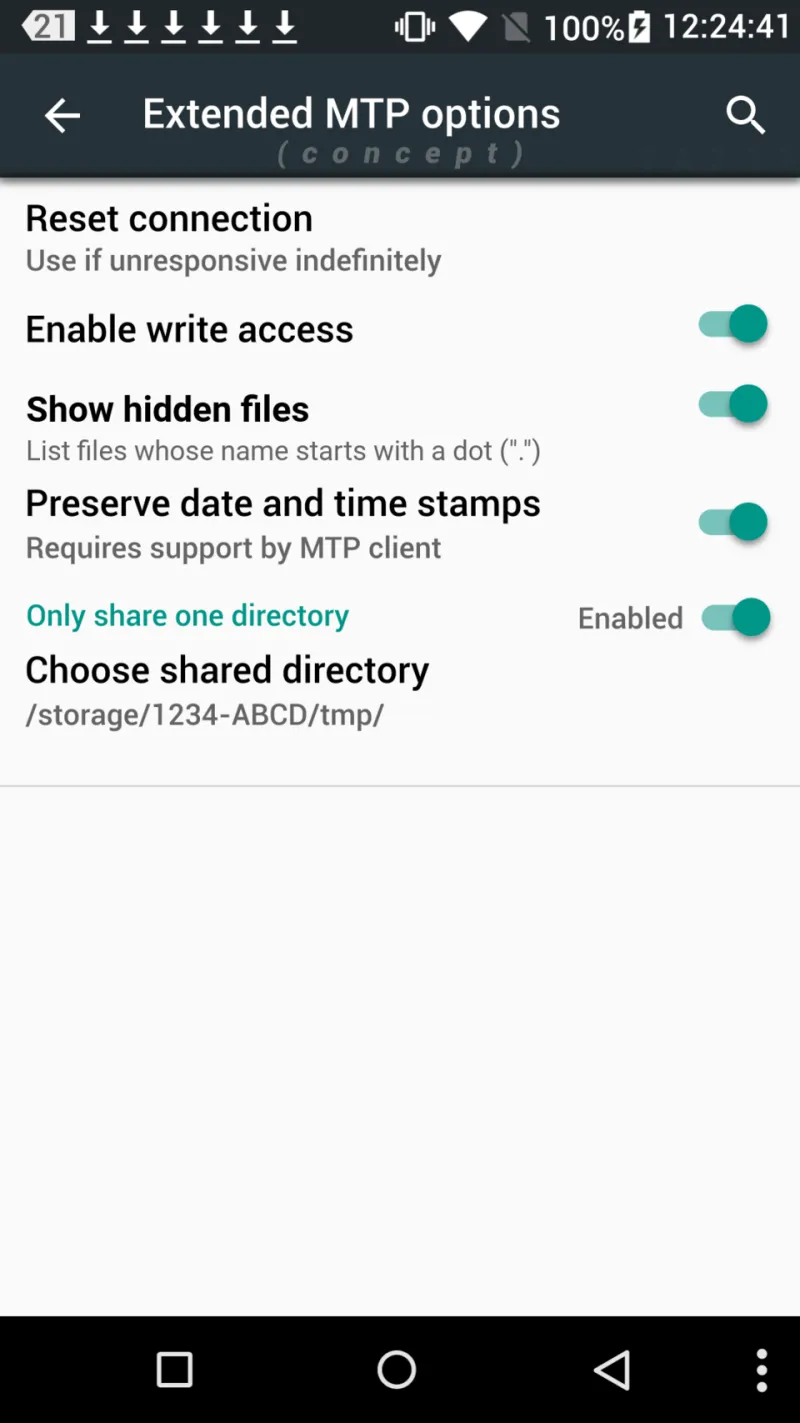
Photo: Base images: The Android Open Source Project Modifications: Unknown – add if found again. Modified in September 2022 by User:Elominius, Apache License 2.0, via Wikimedia Commons
There is a particular kind of bad news that arrives without any drama at all. No siren. No cracked screen. Just a small grey line of text, easy to swipe past, telling you that your last backup was eleven weeks ago. Meanwhile you've been living your life, taking photos of the dog, sending videos of the dog, and assuming the cloud had it covered.
It didn't. The cupboard was full.
This is one of the most common quiet failures in British homes right now, and it's worth half an hour of your attention — not because the sky is falling, but because the fix is cheap, boring, and much less painful than discovering the problem the week your phone goes for a swim in the canal.
What actually stops when storage runs out
Both Apple and Google give you a free allowance, and both are stingier than most people realise. iCloud hands out 5GB. Google gives you 15GB, but that single pot covers Gmail, Google Drive and Google Photos at once, which is why your inbox and your holiday snaps are forever competing for the same shelf.
Once you're at the limit, the effects are specific rather than apocalyptic:
- iCloud backups stop. Your iPhone carries on working normally. It just stops making new copies.
- iCloud Photos stops uploading. New pictures stay on the phone only. Delete the phone's copy to free space and you've deleted the only copy.
- WhatsApp stops backing up to iCloud, so your chat history is now a single point of failure sitting in your pocket.
- On Android, Google Photos stops syncing, Gmail may refuse to receive new mail, and Drive uploads fail.
- Old device backups — the iPad you replaced in 2022, the work phone you handed back — keep squatting on your allowance, often taking up more room than the phone you actually use.
The important nuance: nothing is deleted the moment you hit zero. Your existing files are still there. What changes is that the safety net has a hole in it, and the hole grows every day you ignore it.
The ten-minute audit
Grab a cuppa and do this on the phone itself, not on a laptop.
iPhone: Settings → your name → iCloud → Manage Account Storage (or Manage Storage). Android: Google One app → Storage, or the Google Drive settings page.
You'll usually see a breakdown by category. Look for these three things in order.
- Backups of devices you no longer own. This is the single most common culprit and the easiest win. If you see a backup for a phone you sold or a tablet that lives in a drawer, delete it. Nobody has ever regretted this.
- Photos and video. Sort by size, not by date. Four minutes of 4K video from a school sports day can outrank three years of stills. Also look for the group chat's 400-megabyte forwarded video that you have never once rewatched.
- WhatsApp. On Android, chat backups count against your Google allowance. On iPhone they count against iCloud. Both let you exclude video from the backup — you'll lose the ability to replay forwarded clips if you restore, which most people decide they can live with.
That's it. Most households find two or three gigabytes of pure clutter in under ten minutes.
Beware the offload illusion
On iPhone there's a setting called Optimise iPhone Storage, and on Android the equivalent is Smart Storage or freeing up space with Google Photos. They're genuinely useful, but they create a false sense of security.
Here's the trap: when your cloud is full, optimising local storage can leave you with a phone full of thumbnails and a cloud that has stopped accepting new originals. You've moved the risk around rather than removing it. Before you turn on any offloading feature, make sure the cloud side is actually working — check that the last backup is recent and that photos show as uploaded, not pending.
Pay, switch, or slim
Once you've done the audit, you'll be choosing between three honest options.
Pay. Apple's iCloud+ tiers start around 99p a month for 50GB and rise through 200GB and 2TB. Google One's entry tier is 100GB for a couple of quid a month. Check the current prices yourself — both firms have nudged UK pricing around in recent years, and the numbers on a comparison site are often a year stale.
Switch. You're not obliged to use the cloud that came with the phone. A Microsoft 365 subscription bundles a terabyte of OneDrive, Amazon Prime members get photo storage, and a cheap NAS box at home keeps everything on your own shelf. Switching means downloading your archive first — Apple's Data and Privacy page and Google Takeout both do this properly, though Google Takeout can take days for a large library. Start it, forget about it, come back to it.
Slim. The least fashionable option and often the best one. Most people paying for 2TB are storing four years of screenshots and duplicate photos from three phones ago. Deleting is free, permanent, and deeply satisfying.
The rules nobody reads
Two policies worth knowing, because they turn a mild inconvenience into a genuine risk.
Apple says it may delete iCloud backup data if a device hasn't backed up for around 180 days. Separately, if you let a paid iCloud+ plan lapse, your data above the free 5GB isn't kept indefinitely — Apple warns it may be removed after a grace period.
Google is blunter. If you're over your quota for two years, it reserves the right to delete content across Gmail, Drive and Photos. It also treats a long period of account inactivity as a signal to tidy up.
Translation: a full cloud isn't a stable state you can sit in for years. It's a slow leak.
One thing to do this weekend
Open the storage page, screenshot it, and text the screenshot to yourself or write the numbers down. Then delete one old device backup and one large video. That alone will usually get you under the line and restart the safety net.
Then set a reminder for the first of every month — a two-minute glance at that same screen. It's the least glamorous habit in tech, and it's the one that means you'll never have to explain to a shop assistant, in that particular tone of voice, that the photos of your child's first day at school were only on the phone.