The Little Admin Page Behind the Sofa: A Beginner's Tour of Your ISP Router
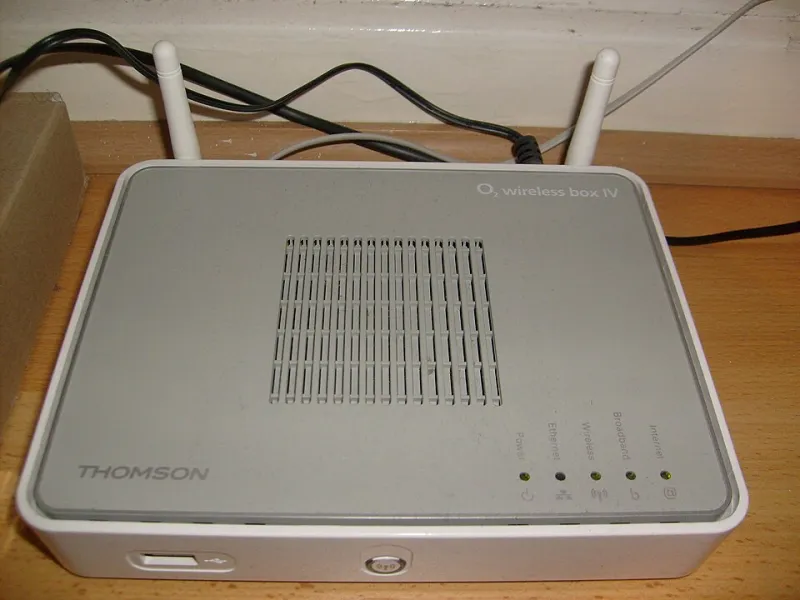
Photo: GoddersUK, CC BY-SA 3.0, via Wikimedia Commons
Most of us treat the router like the boiler: it sits there, a green light blinks, and as long as the telly streams we leave it be. Fair enough. But that box is a small computer, and it has a settings page tucked away behind an IP address. You do not need to become a network engineer to benefit from opening it once. A handful of sensible tweaks make your Wi-Fi safer and your house less annoying.
Finding the door, and the key taped to it
Open a browser on a device connected to your home Wi-Fi. In the address bar, type 192.168.0.1 and press enter. If nothing happens, try 192.168.1.1. Some brands use a friendly name instead — Netgear's boxes often respond to routerlogin.net, for instance.
Still stuck? Turn the router over. There is almost always a sticker with the admin address, the default username and a password. On modern ISP boxes that password is a long random string, not the old admin/admin combo. Keep the sticker where it is; photograph it if the router lives somewhere awkward.
A word of warning before you start tapping: a factory reset button is usually a pinhole on the back. Pressing it wipes every setting, including any your ISP set up. It is a useful last resort if nobody knows the admin password, but it is not a first move.
The Wi-Fi password that came in the box
Default Wi-Fi passwords on 2026-era routers are usually long and random, which is good. But if yours is still the one printed on the card, or something your installer chose in a hurry, change it. Aim for a decent length — three or four unrelated words is easier to type and remember than a jumble of symbols.
While you are in there, check the security setting. You want WPA2 or, better, WPA3. If the page offers WPA/WPA2 mixed mode, that is fine. Anything labelled WEP is ancient and should be switched off.
And do not reuse the admin password as the Wi-Fi password. They are two different locks. If someone gets onto your network as a guest, you do not want them also able to log into the router's settings and change things.
A guest network is not just for guests
Most ISP routers now offer a separate guest Wi-Fi network. Switch it on and give it its own password. The point is isolation: devices on the guest network generally cannot see the computers, phones and smart plugs on your main network.
That makes it ideal for visitors, obviously. But it is also a sensible home for cheap smart plugs, robot vacuums and other gadgets that want to phone home to a server you have never heard of. If one of them turns out to be insecure, it is fenced off from your laptop and your photos. Not every ISP box offers this — some of the more locked-down ones do not — but it is worth a look.
Who is actually on the Wi-Fi?
There is usually a page labelled something like Connected Devices, Attached Devices or Client List. It shows everything currently using your network, sometimes with a name like android-4f2a and a MAC address.
Have a look. You will probably recognise your phone, the telly, a games console and the doorbell. If something is unfamiliar, do not panic — it might be a smart meter display or a neighbour's phone that latched on years ago. The fix is simple: change the Wi-Fi password, which kicks everything off, then reconnect your own devices one by one.
Some routers let you rename devices so the list makes sense next time. It is a small job that pays off.
You will also see options for MAC filtering, which only lets approved devices join. It sounds strong but is easily spoofed and a nightmare to maintain when friends visit. A strong password does more good.
The switches best left alone
A few settings look tempting and are not worth the risk for most people.
- Firmware updates. Let your ISP push these. Manually uploading firmware to a provider-supplied box is a good way to brick it.
- DNS settings. Some ISPs lock these; others let you change them. If you do not know why you would, leave it. If you do, a different DNS provider can sometimes speed up browsing, but it will not fix a weak signal.
- Remote management. If there is an option to allow access to the router from the wider internet, make sure it is off. There is almost never a good reason for it at home.
- Modem mode. Useful if you want to add your own router, but it turns off the box's Wi-Fi and routing. Only do it when you have the replacement ready.
When the box fights back
Some ISP routers are more locked down than others. Sky's boxes have historically kept a tight grip on DNS and a few other settings. Virgin Media's hubs offer less than a shop-bought router. BT's Smart Hubs sit somewhere in the middle. If a page you want is greyed out, that is usually the provider's choice, not a fault.
If you are keen, many ISP hubs can be put into modem mode so you can run your own router behind it. That is a bigger project, but it is a legitimate route if you want proper control. For everyone else, the settings above — password, guest network, a glance at the device list — are the sensible 90%.
Open the page once, make those changes, then close the tab and forget about it. That is the point of a good router: it should be boring.